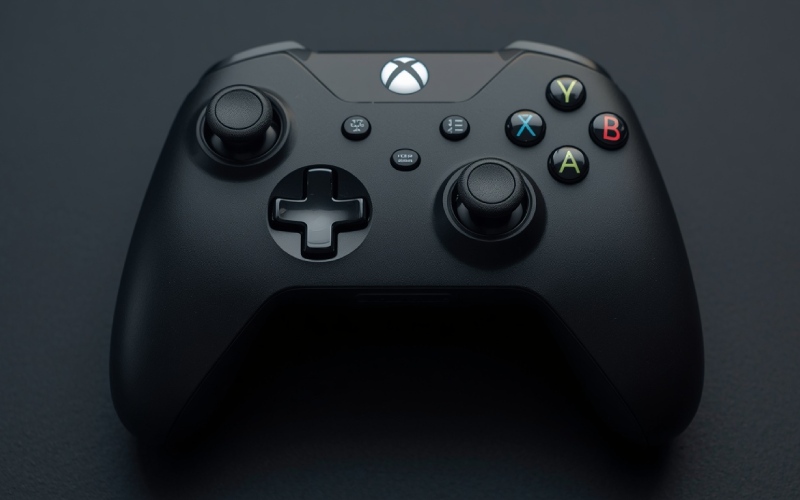
Tutorial Guide HSS Gamepad: How to Set Up, Configure, and Troubleshoot It in 2026
Getting a new gamepad and starting to use it with your current system should be a simple and joyful experience, but things like connection problems, incorrect button mappings, and joystick issues can ruin your experience. The HSS Gamepad is promoted in current online guides as a controller that can be used with devices such as PCs, Android devices, smart TVs, and gaming consoles.
This article will discuss the HSS Gamepad in detail. So whether you are connecting for the first time or trying to fix an existing problem, this article is for you.
What Is the HSS Gamepad?
The HSS Gamepad is discussed as a multi-platform gaming controller. It can generally be used through USB, Bluetooth, or a 2.4GHz wireless dongle, primarily depending on the device’s connectivity features. You should choose the connection method as per your usage and convenience.
How to Connect the HSS Gamepad
USB Connection
Connecting the HSS Gamepad through USB is simple. Just connect the gamepad to an available USB port using a compatible cable, and your system should automatically detect it. Once connected, open controller settings and test the buttons, sticks, and triggers to confirm whether everything is working fine or not.
Bluetooth Connection
Bluetooth connection is preferred when you don't want a cable connection. The process includes these steps:
-
Turn on the HSS Gamepad.
-
Hold the pairing button until the LED begins flashing.
-
Open Bluetooth settings on your device.
-
Look for the HSS Gamepad in the available devices.
-
Select it and wait for the connection to complete.
Make sure to keep your controller close to the device to facilitate smooth initial setup.
2.4GHz Wireless Connection
If your controller supports a 2.4GHz USB dongle, insert it into an available USB port and turn on the gamepad. The controller should normally connect automatically; if not, then use the controller’s Mode or sync button to initiate pairing.
Configure the Controller Before Gaming
After successfully connecting your HSS Gamepad, it is important to test it thoroughly before starting the game.
On Windows, you can use the term joy.cpl to open the Game Controllers settings. From there, you can select the controller, test its buttons, sticks, and triggers. Also, make sure to select the gamepad as the input device in the game's settings; otherwise, it may use keyboard and mouse inputs.
Fixing Common HSS Gamepad Problems
Controller Isn't Detected
Follow these basic steps:
-
Check that the controller has enough charge.
-
Try another USB port.
-
Disconnect other controllers temporarily.
-
Restart the computer or console.
-
Re-pair the controller if you're using Bluetooth.
-
Check for driver or firmware updates.
Bluetooth Keeps Disconnecting
If Bluetooth keeps disconnecting, make sure to reduce distance and remove other wireless devices around your system. If still not resolved, re-pairing the Bluetooth connection can also help.
Buttons Don't Respond Correctly
This issue generally arises due to incorrect mapping. To resolve it, first restore the default layout and then align your gaming controller and operating system’s controller settings. If still not resolved, then it may be a hardware problem.
Joystick Drift
Joystick drift refers to a character or cursor moving without touching the stick. It can be frustrating and affect your game. To resolve it, recalibrate the controller and clean the joystick area using compressed air. If you are still facing the same issue, then it must be a hardware problem; seek repair or replacement.
When Should You Reset the Controller?
A reset should be your last resort, and only opt for it when normal troubleshooting doesn’t solve the current issue. For a reset, you should refer to your HSS Gamepad guide to know the process of resetting your gamepad.
Frequently Asked Questions (FAQs)
Can the HSS Gamepad Connect Through Bluetooth?
Yes, as per the available details, the latest version of the HSS Gamepad comes with Bluetooth connectivity and can be connected with multiple devices such as PCs, Android devices, and more.
Why isn't My HSS Gamepad Being Detected?
If your device fails to detect your HSS Gamepad, it can be due to a low battery, a USB connection issue, improper Bluetooth pairing, and other similar reasons.
Which Connection is Best for Gaming?
A wired USB connection is generally considered the most stable. However, the best one may be different in your case as per your setup and usage requirements.
Conclusion
Setting up a new HSS Gamepad should be a joyful experience as you are incorporating a new device into your gaming setup. While setting up for the first time, you may face several issues, which can be frustrating. Still, we hope the solutions mentioned in this article will help you resolve them effectively. In this article, we discussed the connectivity topic of the HSS Gamepad in detail and hope that you like reading it. If so, then do share this post with others as well.

How to Build Links Without Losing Sight of Quality




Why HR Teams Should Connect Workforce Planning With Talent Development